Centos6Oracle12C超详细安装
InstallOracleDatabase 12c.
Before Installing, Change some settings for requirements of installing Oracle database.
[1] Install Desktop Environment, refer to here.
[2] Install some packages first.
[root@dlp ~]# yum -y install binutils compat-libcap1 compat-libstdc++-33 compat-libstdc++-33.i686 gcc gcc-c++ glibc glibc.i686 glibc-devel glibc-devel.i686 ksh libgcc libgcc.i686 libstdc++ libstdc++.i686 libstdc++-devel libstdc++-devel.i686 libaio libaio.i686 libaio-devel libaio-devel.i686 ibXext ibXext.i686 libX11 libX11.i686 libxcb libxcb.i686 libXi libXi.i686 make sysstat
[3] Edit Kernel parameters.
[root@dlp ~]# vi /etc/sysctl.conf # comment out
# net.bridge.bridge-nf-call-ip6tables = 0
# net.bridge.bridge-nf-call-iptables = 0
# net.bridge.bridge-nf-call-arptables = 0
# add follows to the end
kernel.shmmni=4096
kernel.sem=250 32000 100 128
fs.file-max=6815744
fs.aio-max-nr=1048576
net.ipv4.ip_local_port_range=9000 65500
net.core.rmem_default=262144
net.core.rmem_max=4194304
net.core.wmem_default=262144
net.core.wmem_max=1048576 [root@dlp ~]# sysctl -p
net.ipv4.ip_forward = 0
net.ipv4.conf.default.rp_filter = 1
net.ipv4.conf.default.accept_source_route = 0
kernel.sysrq = 0
kernel.core_uses_pid = 1
net.ipv4.tcp_syncookies = 1
kernel.msgmnb = 65536
kernel.msgmax = 65536
kernel.shmmax = 68719476736
kernel.shmall = 4294967296
kernel.shmmni = 4096
kernel.sem = 250 32000 100 128
fs.file-max = 6815744
fs.aio-max-nr = 1048576
net.ipv4.ip_local_port_range = 9000 65500
net.core.rmem_default = 262144
net.core.rmem_max = 4194304
net.core.wmem_default = 262144
net.core.wmem_max = 1048576
[4] Create user and groups for Oracle Database.
[root@dlp ~]# i=54321; for group in oinstall dba backupdba oper dgdba kmdba; do
groupadd -g $i $group; i=`expr $i + 1`
done
[root@dlp ~]# useradd -u 1200 -g oinstall -G dba,oper,backupdba,dgdba,kmdba -d /home/oracle oracle
[root@dlp ~]# passwd oracle
Changing password for user oracle.
New password:
Retype new password:
passwd: all authentication tokens updated successfully.
[root@dlp ~]# mkdir -p /u01/app/oracle
[root@dlp ~]# chown -R oracle:oinstall /u01/app
[root@dlp ~]# chmod -R 775 /u01
[root@dlp ~]# vi /etc/pam.d/login # near line 14: add
session required pam_selinux.so opensession required pam_namespace.sosession required pam_limits.sosession optional pam_keyinit.so force revokesession include system-auth-session optional pam_ck_connector.so[root@dlp ~]# vi /etc/security/limits.conf # add follows to the end
oracle soft nproc 2047oracle hard nproc 16384oracle soft nofile 1024oracle hard nofile 65536oracle soft stack 10240oracle hard stack 32768
[5] Switch to a user “Oracle” and configure some settings.
dlp login: oracle Password:
[oracle@dlp ~]$ vi ~/.bash_profile # add follows to the end
umask 022
export ORACLE_BASE=/u01/app/oracle # create a temporary directory for installation
[oracle@dlp ~]$ mkdir tmpInstall Oracle Database 12c.
[1] Login and work with “oracle” user which you create in previous section.

[2] Download Oracle Databse 12c forLinuxand upload on your server.
http://www.oracle.com/technology/software/products/database/index.html
[3] After uploading Oracle files, move to a tmp directory and run an Installer like follows.
[oracle@dlp ~]$ cd tmp
[oracle@dlp tmp]$ unzip linuxamd64_12102_database_1of2.zip
[oracle@dlp tmp]$ unzip linuxamd64_12102_database_2of2.zip
[oracle@dlp tmp]$ ./database/runInstaller
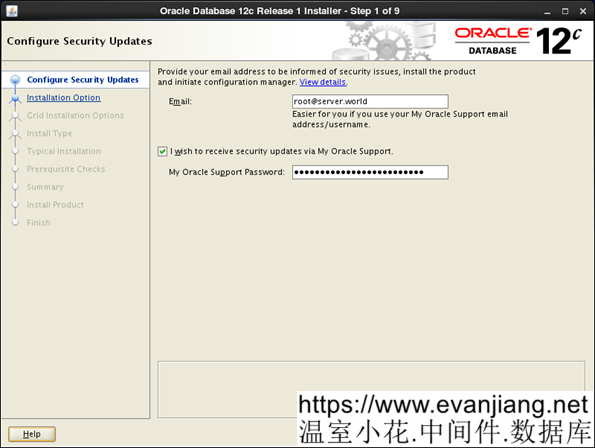
[4] Oracle Installer starts like follows. First, Set your email address and password for receiving some infomation from Oracle like security issues and so on.
[5] On this example, Select “Install database software only”.
以下文章点击率最高
Loading…